

How to Make Claude Your Personal S&C Coaching Assistant with Scheduled Tasks
Claude can run a saved prompt on a schedule to automate daily and weekly coaching work. Connected to Relay, it can send you a morning brief covering who trained, who is flagging soreness or pain, and whose load has jumped. It can also draft next week's training as unpublished drafts that you review and publish. And it can adjust an existing program when conditions you define are met.
The repetitive tasks of coaches#
Every coach has a set of tasks that happen away from the floor. Checking who actually completed their sessions, reading through the week's questionnaire responses, updating next week's loads once you already know what needs to change. It is not coaching, but it still has to be done, and it takes time that would otherwise go to your athletes.
What these tasks have in common is that the decision is already made by the time you sit down to them. You know what a missed session means, what to do when someone reports pain three days running, and how you progress a block. What is left is the manual work of putting it in.
A scheduled task is a prompt you write once and Claude can execute on a defined cadence. Combined with the Relay MCP, it allows you to automate the tedious coaching tasks and free up time for more coaching.
This guide walks through the setup and then two tasks you can use straight away.
Using ChatGPT instead? The idea carries over, because ChatGPT also has scheduled tasks on its paid plans and the prompts further down work as written. The setup steps and the limits are different though, so check what your plan allows and confirm your Relay connector works inside a scheduled task before you build a week around it. Everything below assumes Claude.
Prerequisites#
You need a paid Claude plan. Scheduled tasks are available on Pro, Max, Team and Enterprise, but not on the free tier.
You will also need a Relay account and your Relay MCP connector already set up and working. Our MCP setup guide covers that in about two minutes.
If you do not have a paid Relay plan yet, you can still follow this setup with a free trial.
Claude connects to Relay from Anthropic's cloud rather than from your laptop, which is what allows a task to reach your account while your own machine is switched off. A task reads Relay with your permissions and sends what it reads to Anthropic, the same as anything else you put into a chat.1
How to set up a scheduled task#
-
Go to claude.ai and look for the Scheduled tab in the sidebar, then click New task. Choose Set up manually.
Creating a new scheduled task. -
A form opens with a few fields. The large text box is the Prompt, and that is where everything in the copy boxes further down this article goes. Paste the whole thing in.
-
Fill in a task name so you can find it later, set the approval mode and the frequency, then save.
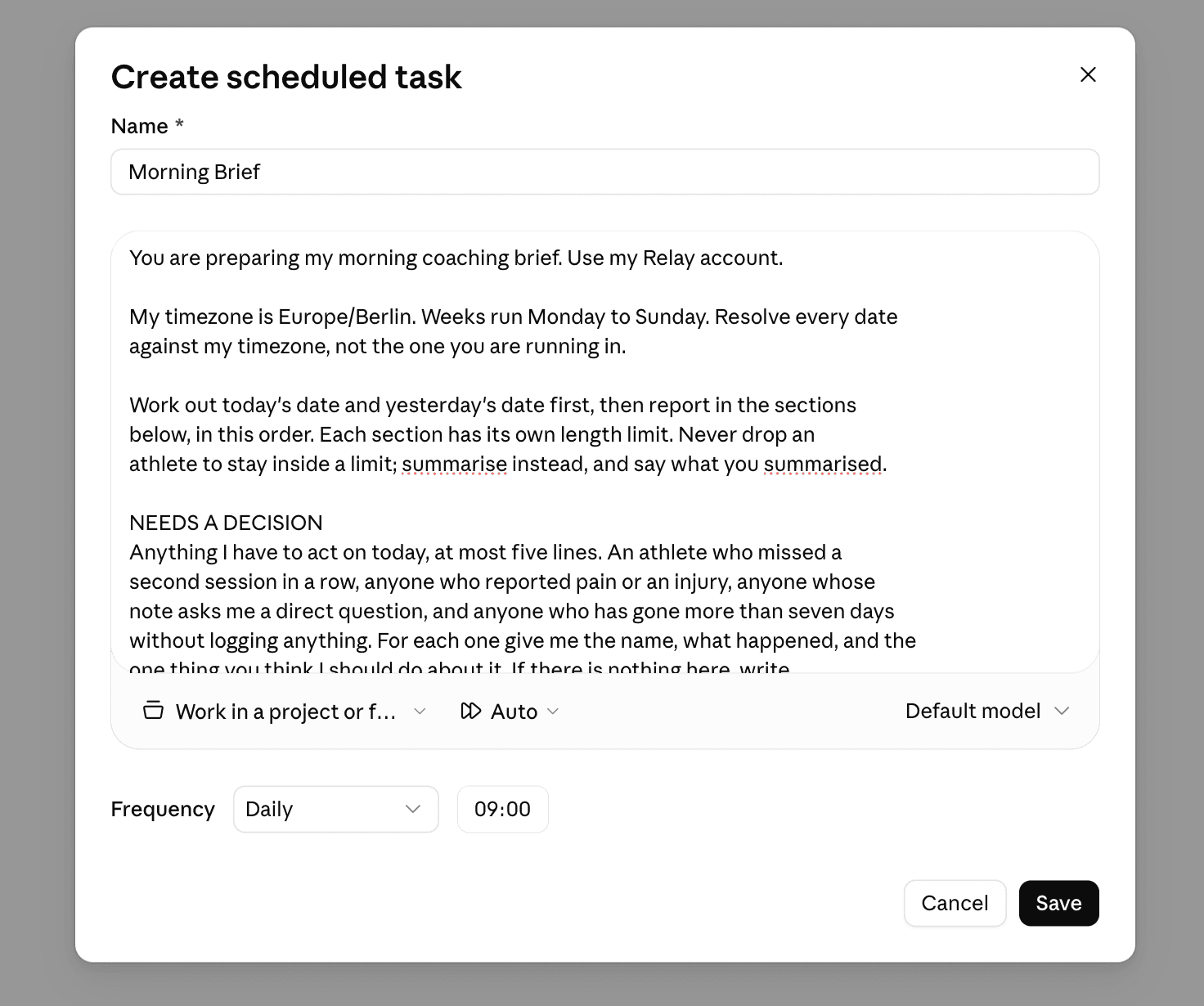
The whole prompt goes into the Prompt field, exactly as written.
The prompt is the task. There is no separate place to attach data or pick which athletes it covers, so anything the task needs to know has to be written into that one box. That is why the prompts below are longer than what you would type into a chat window.
The model is a tradeoff. A more capable model follows a long prompt more precisely and handles the harder work better, but it also uses up your plan's usage allowance faster. Sonnet 5 is a good default for everything in this article; switch to Opus 5 for the tasks that involve real judgement, like drafting a week of programming.
Approval mode controls how much Claude does on its own. We recommend going with Skip here.
Frequency is when and how often the task runs.
The working folder can be selected if you have a running Claude Project with context in. In our case, leave it empty.
Install the Claude app on your phone as well, so a finished task reaches you as a notification instead of waiting for you to go and open it.
The morning brief#
If you want to start the day informed, this task is for you. It answers where you and your athletes stand in a single message, before anything else. It covers what happened yesterday, who is flagging problems, and once a week whether anyone's load has jumped, so you are not opening four different reports to piece it together yourself.
Paste this into the Prompt field, and change the timezone on the second line to yours before you save.
You are preparing my morning coaching brief. Use my Relay account.

My timezone is Europe/Berlin. Weeks run Monday to Sunday. Resolve every date
against my timezone, not the one you are running in.

Work out today's date and yesterday's date first, then report in the sections
below, in this order. Some sections have length limits. Never drop an athlete to
stay inside a limit; summarise instead, and say what you summarised.

NEEDS A DECISION
Anything I have to act on today, at most five lines. An athlete who missed a
second session in a row, anyone who reported pain or an injury, anyone whose
note asks me a direct question, and anyone who has gone more than seven days
without logging anything. For each one give me the name, what happened, and the
one thing you think I should do about it. If there is nothing here, write
"Nothing needs a decision today" and move on.

YESTERDAY
One line per athlete who had a session scheduled yesterday. Name, whether they
completed it, skipped it or left it unfinished, and their RPE if they logged
one. Quote anything they wrote in their notes verbatim rather than summarising
it, because the wording usually matters more than the content. Skip any athlete
who had nothing scheduled, do not list them as having no activity.

If more than fifteen athletes trained yesterday, give one summary line for
everyone who completed as prescribed, then list non-completions, unfinished
sessions and anyone who left a note individually.

READINESS
Read every questionnaire response from the last seven days and look at any
field relating to sleep, soreness, pain, fatigue, stress or mood, whatever my
questionnaires happen to call them. Flag an athlete if they reported pain at
any severity, rated sleep or fatigue in the worst third of the scale, reported
high soreness in a body area they trained in the last three days, or flagged
the same issue on two or more separate days this week.

List the flagged athletes worst first, using your own judgement about severity
rather than a strict score. For each one give the name, their answers in their
own words, whether they trained after flagging it, and what they have scheduled
in the next three days. Write "repeat: N days" next to anyone who has flagged
the same problem more than once.

Then draw a plain text grid of the week. One row per flagged athlete, one
column per day from Monday to Sunday. Use X for a day they flagged something, a
full stop for a day they responded with nothing concerning, and a space for a
day they did not respond at all. Put the name on the left, padded so the
columns line up, and wrap the grid in a fenced code block so it renders in a
monospace font.

If nobody meets the criteria, write one line saying so and skip the grid.

LOAD
Only include this section if today is Monday. Otherwise skip it entirely and do
not mention it.

For every athlete who completed at least one session in the last seven days,
calculate their total volume for those days using sets multiplied by reps
multiplied by load wherever a load is recorded. Where an exercise has no load,
count total reps separately rather than treating it as zero. Compare that to
the same athlete's average across the three weeks before, and flag anyone more
than 30% above their own average.

At most five lines. For each flagged athlete give the percentage increase, the
two or three exercises that accounted for most of the jump, and whether they
also reported soreness or pain this week. Skip anyone with fewer than two
completed sessions in the comparison period and list their names at the end
under "not enough history". If nobody is above the threshold, say so in one
line and name who came closest.

Rules for the whole brief. Do not add encouragement, coaching advice, or a
summary paragraph at the end. If you could not reach some part of my Relay
data, say so explicitly at the top rather than quietly leaving it out.
Set the Frequency to weekdays, early enough that it has finished before you start.
The sections are separate on purpose. If you do not use questionnaires, delete the READINESS block. If you would rather check load yourself, delete LOAD. The brief still works with any one section removed.
You can adjust the prompt to your needs and go further from here. For example you can connect your Gmail account and send the morning brief to your coaching staff.
Next week's programming#
Unlike the morning brief, this task writes to Relay rather than only reading from it, so it needs more care.
Through the Relay MCP, Claude can build sessions, progress blocks and assign programs through the connector. Relay has a draft state for assigned work, which means a workout that has an athlete and a date on it won't go live without you actively publishing it on that athlete's calendar. That draft step is what makes an unattended write task safe, so the prompt below keeps everything in it.
Paste this into the Prompt field. Change the timezone and fill in the athlete names or tag before you save.
Draft next week's training in my Relay account. Create everything as drafts and
do not publish anything.

My timezone is Europe/Berlin. Weeks run Monday to Sunday. Resolve every date
against my timezone, not the one you are running in.

Work through these athletes only: [list names or a tag here]. Do not touch
anyone else on my roster. If that list still contains a placeholder, stop and
tell me rather than guessing who I meant.

Work through them one at a time and finish each athlete before starting the
next. If you cannot complete every athlete, finish the ones you started and list
who you did not reach, so I know where to pick up.

First gather context. Open each athlete's profile and read their goals,
limitations, coach notes and tags. Then read this week's questionnaire responses
and every session they actually completed in the last seven days, including the
loads and reps they logged rather than the ones that were prescribed.

Then build next week for each athlete, following these rules.

Anything in an athlete's limitations or coach notes outranks every rule below.
If an injury or a restriction rules out an exercise, substitute it rather than
programming around it quietly, and say what you swapped and why. If a note says
someone is working towards a specific goal or event, keep the week pointed at
it.

Progress from what they completed, not from what was planned. If someone was
prescribed 100kg and logged 90kg, the progression starts from 90.

If an athlete missed more than one session this week, repeat the week rather
than progressing it.

If an athlete reported pain, or flagged high soreness twice or more, hold their
load flat and note it.

Keep the structure of their current block. Do not introduce new exercises
unless one they were doing is clearly not working, and if you do, say why.

Leave everything as a draft. Do not publish any session, and do not change any
session that is already published.

Finish with a summary for me, one short paragraph per athlete, explaining what
you changed and why. Where you held someone back or repeated a week, say which
piece of evidence drove that. I want to be able to disagree with your reasoning
without opening every session.
Run it weekly, on whatever day you program for the next week.
On that day you open Relay, read the drafts sitting on each athlete's calendar, change whatever you disagree with, and publish. What you get is a starting point rather than a finished week. The summary paragraph lets you check the progressions you would not have made yourself without opening every session to find them.
The most important part is to prepare the context of your athletes. The Relay MCP exposes questionnaire results, previous workouts logged and also the athlete profile including their tags, notes, limitations and goals. If you want to get the most out of this, spend time setting up the context for the agent. For example, each athlete's notes section could include their primary movements, if they are squat dominant vs. hip-hinge dominant and more. We will publish a new article around context engineering soon.
Once you are publishing what it wrote week after week without changing anything, you can have Claude skip the draft step: drop the two lines about not publishing and let it write straight to the calendar.
Writing your own#
The two use cases above are a starting point. Here is what to understand before you write your own scheduled task.
Before you open Claude at all, sit down and work out what you actually repeat. Write down the task, then the rules you follow when you do it by hand, then the edge cases you handle without thinking about them. Be more precise than feels necessary. Most of what makes a prompt good is knowledge you already have and have never had to put into words, and the fastest way to a task that works is to turn those notes into the prompt rather than starting from a blank box.
Every run starts fresh with no memory of the last one, so write as though you are briefing a competent assistant who has never seen your roster before.
Name the timeframe explicitly, because "last week" is ambiguous on a Monday in a way that "the last seven days" is not. Name the output you want, including how long it should be, what order it should come in, and what to lead with. Asking Claude to "summarise the week" gets you something different every Monday.
Say what to leave out as well, because a scheduled report that lists every athlete who did nothing is a report you stop reading after a fortnight. Tell it what to do when there is nothing to report, otherwise it will invent something to fill the space. And whenever a task writes something rather than just reporting on it, ask for the reasoning too, because you cannot review a decision you cannot see.
Tasks typically fall under one of two categories: Read Tasks (Morning Brief, Weekly Report etc.) or Write Tasks (drafting a new week, adjusting load etc.). You can also do combinations of both.
Managing tasks#
The Scheduled page is where you pause and resume a task, edit its prompt or its cadence, delete it, or run it on demand. It also lists both upcoming and past runs, which is where you go when something has not worked.
Run a task on demand once before you trust the schedule. If what comes back is empty or wrong, work through these in order.
- Did it run at all? Check the past runs. Nothing there points at either the cadence or the working folder.
- Did it stall waiting for approval? A task on Manual mode waits rather than fails, so it looks identical to one that ran and found nothing.
- Could it reach Relay? Ask Claude in a normal chat to list your athletes. If that fails too then the connector needs reconnecting, not the task.
- Was the prompt specific enough? Vague timeframes are the most common cause of an answer that is technically correct and completely useless.
Start with the morning brief. You already know what yesterday looked like, so you can tell straight away whether it got things right. Once that one is running cleanly, adding the programming task takes a couple of minutes.
If you build one that works well, tag us on Instagram @relay.athletic or send it to team@relayathletic.com. We will share the ones worth passing on, and the newsletter below is where the context engineering article lands when it is ready.
Footnotes#
-
That is your roster, their sessions, questionnaire responses and anything written in notes, including pain and injury flags. It sees what you see and nothing you cannot. If you coach at a university, club or federation, check that against your own data policy before you schedule anything. ↩
Summarize with AI


Stay up to date
New articles, product news and free resources for coaches.
Keep reading
- How to Set Up the Relay MCP ServerConnect Relay to Claude and other AI apps so you can build and adjust training without leaving the chat.
- How Joe took on more clients without changing how he programsJoe Pedulla taught Claude the rules he already coached by, and now handles more clients on the same principles, with the decisions still his.
- How Liam programs over 100 athletes a week at a timeLiam Evans programs week to week for over 100 athletes, with a daily report and a Sunday task that drafts the next week from what each athlete actually did.